Resify.ai User Guide
A quick tour of how to upload, tailor, score, and manage your resumes.
Quick start
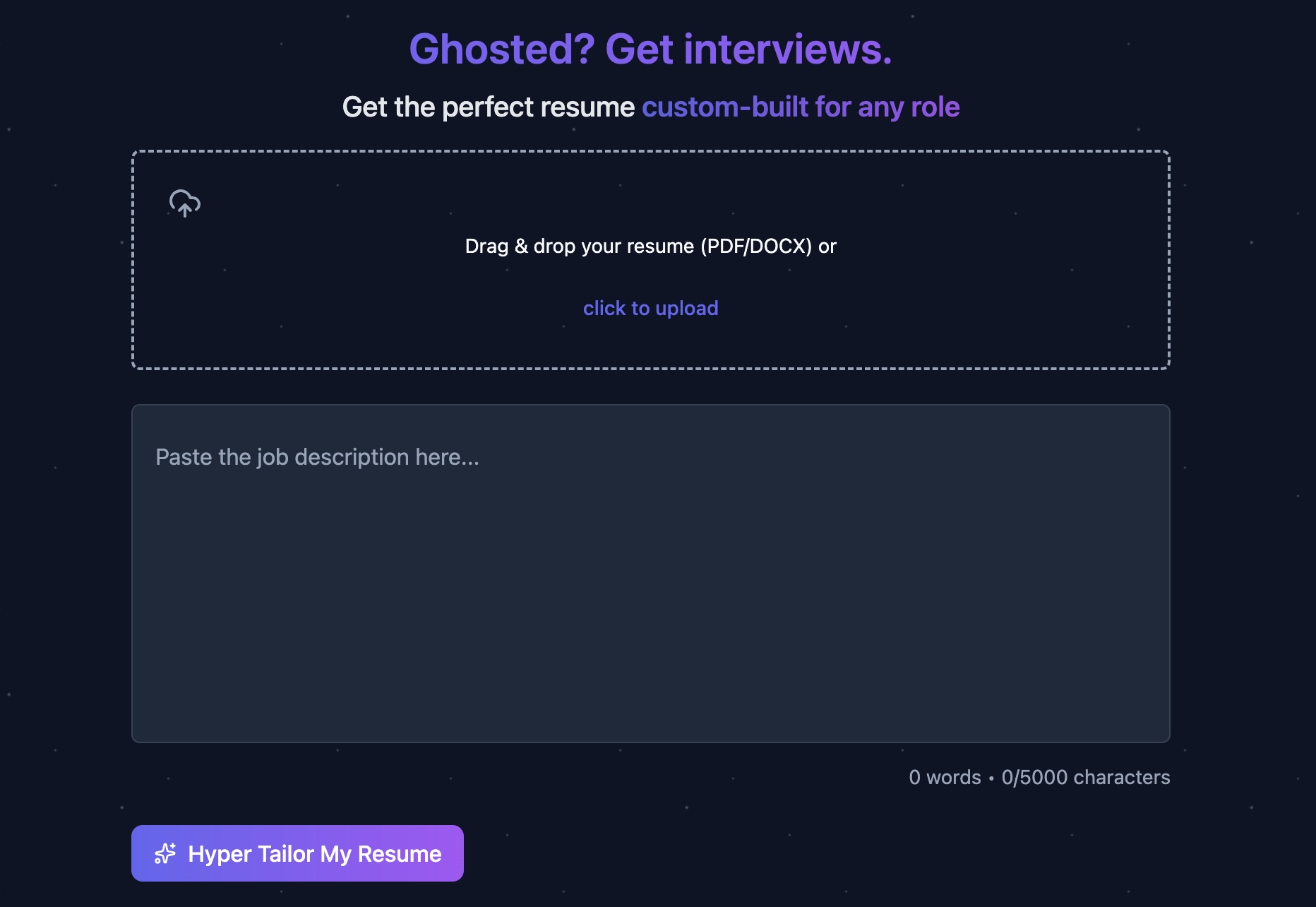
- Upload your existing resume (PDF or DOCX) using the drag-and-drop box or the upload button.
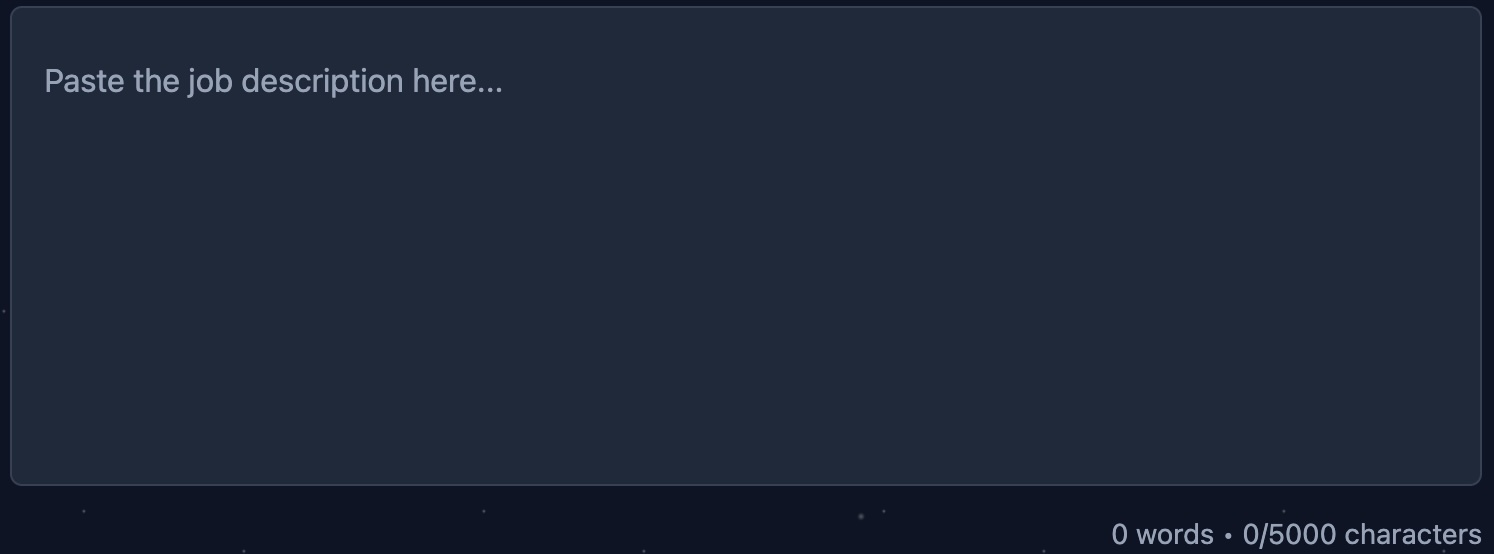
- Paste the job description into the text area.
- Click Hyper Tailor My Resume to generate an optimized version.
- Open Explore Resify Score to view your scoring report with a gauge, comparison bars, and breakdown.
- (Optional) Pick a resume template in the template gallery.
- Download the PDF (Pro members).
Upload your resume
Use the upload area to add your existing resume. You can drag & drop or click to choose a file. If you upload the wrong file, use Replace to pick another.
- Supported types: PDF (.pdf) and Word (.docx).
- Max file size: 5 MB.
- Text is extracted automatically so Resify can tailor it to the job.

Find & paste the job description
Copy the full job description from the posting and paste it into the text area. Keep as much detail as possible so the AI can tailor your resume precisely.
- The counter shows both word and character counts.
- Maximum length is 5,000 characters.
The tailoring process
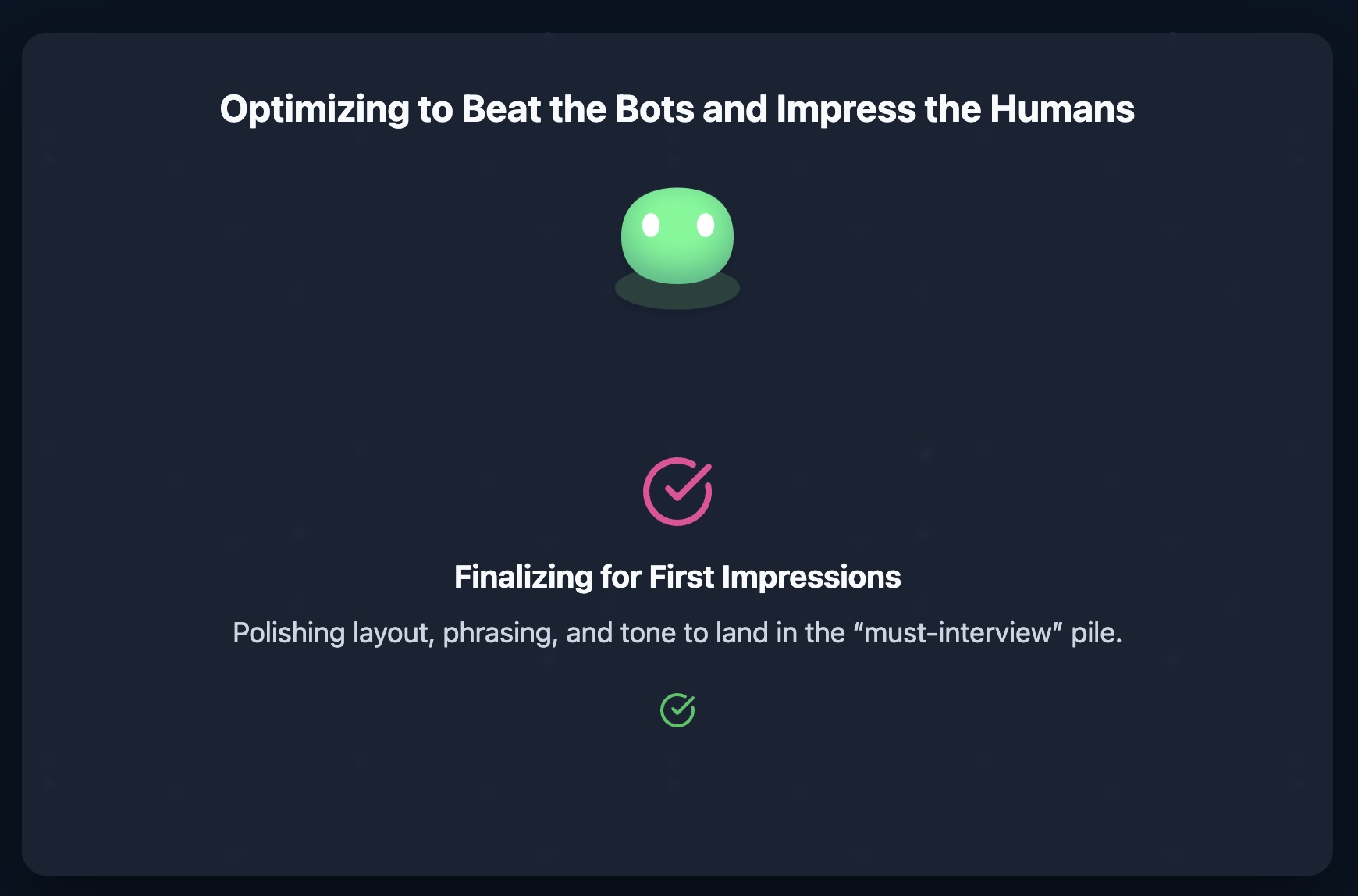
Click Hyper Tailor My Resume to run our proprietary, finely tuned AI model. It analyzes your resume and the job description to emphasize relevant experience, adjust phrasing, and improve formatting so you pass automated scans and impress human reviewers.
- Aligns your summary and bullets to the role’s keywords.
- Improves clarity and impact, quantifying results where possible.
- Organizes sections consistently (e.g., Skills below Summary when appropriate).
- Keeps presentation tight and professional; prepares for clean PDF rendering.
- A loading overlay while optimization runs.
- Updated resume content in the live preview.
- An option to open the full Resify Score report in a modal.
Resify Score & report modal
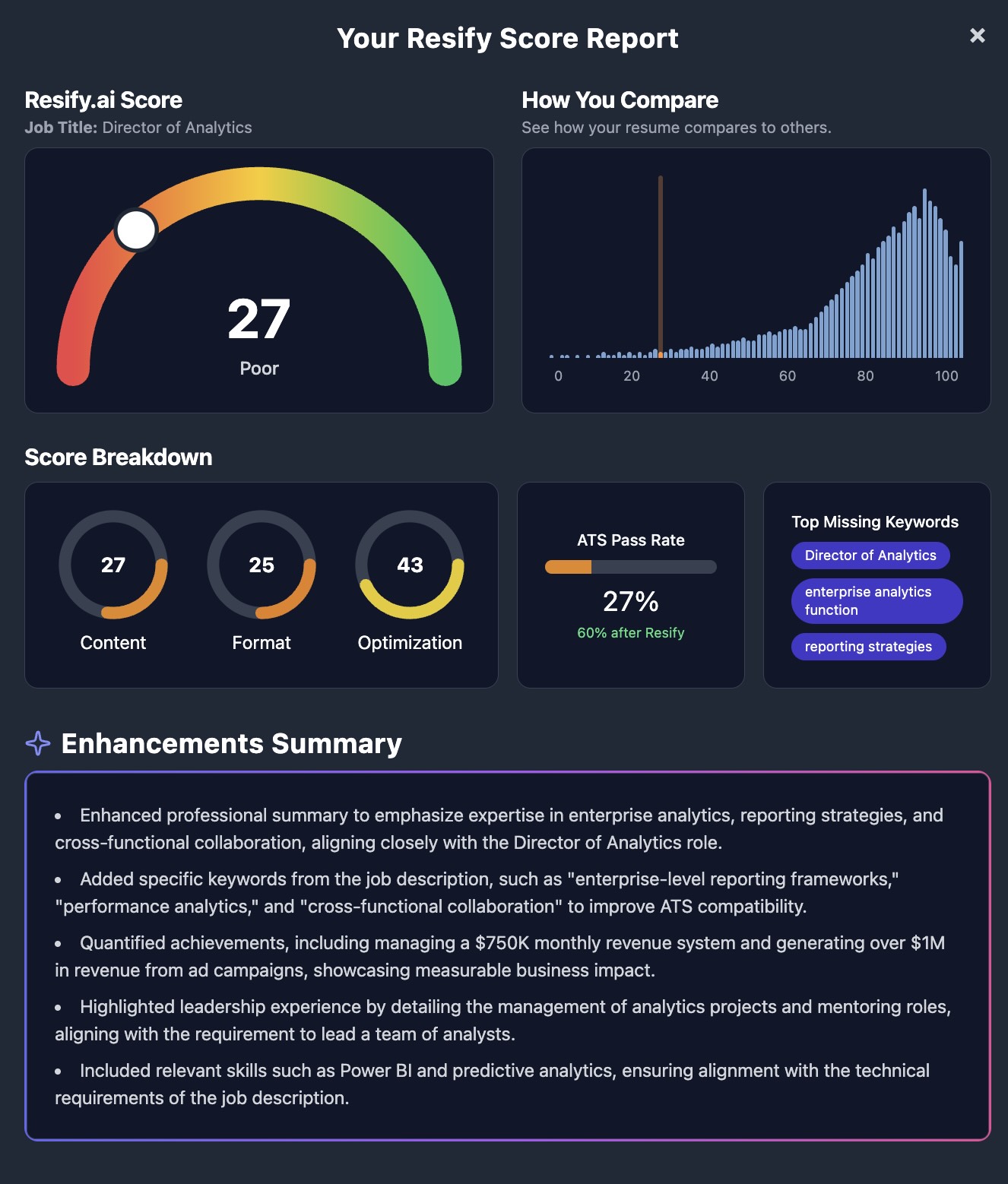
Your score summarizes how well your resume aligns with the job. Open the full report with Explore Resify Score to view details and guidance.
- Gauge: overall score with animated needle and label (Poor / Needs improvement / Excellent).
- How You Compare: animated bar chart showing where you sit relative to other scores.
- Score Breakdown: three mini-rings for Content, Format, and Optimization.
- ATS Pass Rate preview: a progress bar for your current (before) pass rate.
- Highlights & Keywords: a short list of notable strengths and key terms to weave in.
Tips:
- Use the report as a checklist; address the lowest sub-scores first.
- Close the modal with the × in the top-right or the Close button at the bottom (mobile-friendly).
Downloads (PDF)
When you’re happy with the result, download the tailored resume as a PDF. Downloads are available to Pro members.
- From the main tailoring page, use Download PDF.
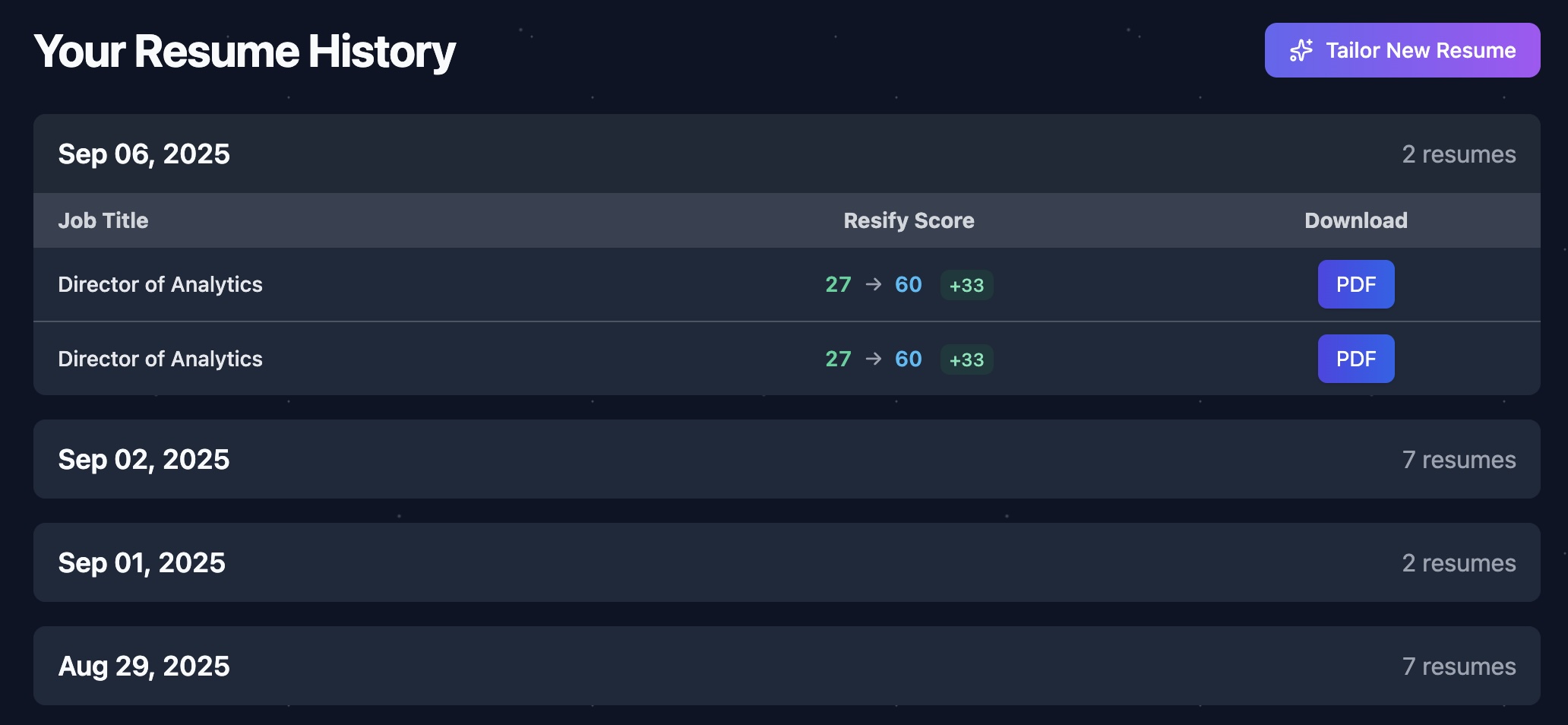
- From the Dashboard, each past resume has a PDF button.
- If your subscription is inactive, you’ll see a friendly upgrade / resubscribe prompt.
Dashboard & resume history
Your tailored resumes are grouped by date. Each entry shows the job title, your before → after score change, and a PDF action.
Account & billing
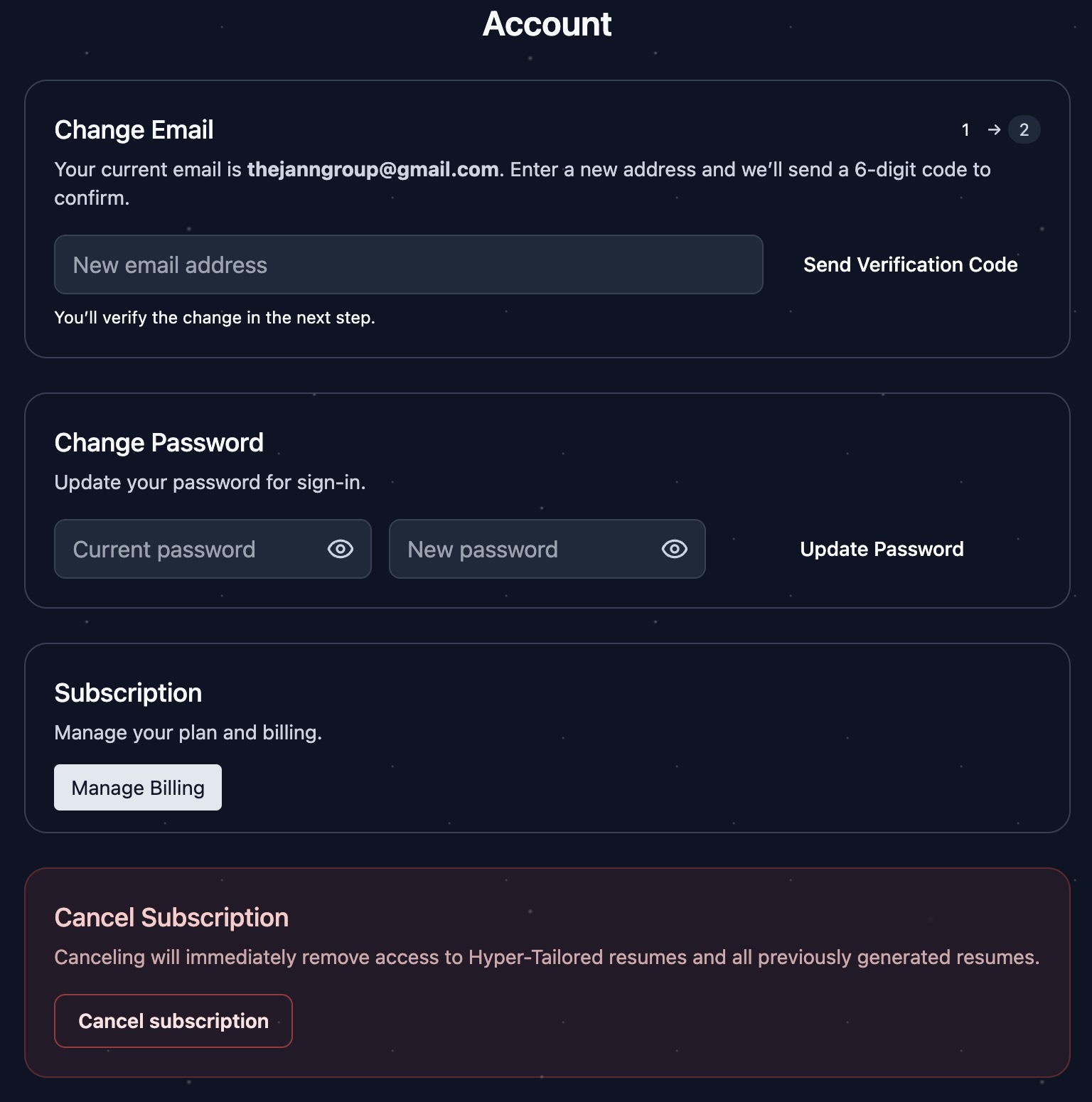
- Enter your new email and request a 6-digit code.
- Enter the code to confirm and update your account email.
- Change password (for Cognito-based logins).
- Manage billing or upgrade to Pro in one click.
- Canceling ends Pro access immediately (including previously generated resumes).
Supported formats & limits
- Resume uploads: PDF (.pdf) and Word (.docx), up to 5 MB.
- Job description: up to 5,000 characters (word & character counter provided).
- PDF export uses a print-optimized renderer to fit cleanly on one page.